



Universal Intel Chipset Drivers Updater
- FirstEver
-
 Topic Author
- Offline
- The Best Poster
-

Enregistré
- Posts: 116
- Thanks: 201
Re: Universal Intel Chipset Drivers Updater
6 months 4 weeks ago - 6 months 4 weeks ago
Thank you for the detailed feedback – it confirms exactly what I suspected. The fact that the updater worked flawlessly on a fresh Windows 10 22H2 installation proves that the 1603 error was caused by something specific to your previous system, not by a bug in the tool.
Regarding other driver tools
I can assure you that no other tool has a more up‑to‑date INF database than my updater. I maintain a complete archive of every INF file from every official Intel Chipset Device Software package ever released. So if another program suggests a downgrade, you should ignore it completely – they simply cannot detect the true latest version for your devices.
The 1968/1970 dates are also normal. Intel stopped embedding valid timestamps in newer INF files; when the system sees no date, it falls back to the earliest possible (1968‑01‑01 or 1970‑01‑01). Any tool that relies on those dates will be misled.
About uninstall-intel-chipset.bat
You wrote: "it seems overly complicated, even if I could get it to work."
Could you clarify – did you actually run the uninstall tool, or not?
Its logic is very straightforward:
The uninstall tool is meant to remove only the installer entry, not the already installed INF files.
What I’d like to know
Regarding other driver tools
I can assure you that no other tool has a more up‑to‑date INF database than my updater. I maintain a complete archive of every INF file from every official Intel Chipset Device Software package ever released. So if another program suggests a downgrade, you should ignore it completely – they simply cannot detect the true latest version for your devices.
The 1968/1970 dates are also normal. Intel stopped embedding valid timestamps in newer INF files; when the system sees no date, it falls back to the earliest possible (1968‑01‑01 or 1970‑01‑01). Any tool that relies on those dates will be misled.
About uninstall-intel-chipset.bat
You wrote: "it seems overly complicated, even if I could get it to work."
Could you clarify – did you actually run the uninstall tool, or not?
Its logic is very straightforward:
- It scans the Windows registry (uninstall keys) for entries containing
"Intel(R) Chipset Device Software" (old Intel installers) or "SetupChipset" (newer MSI‑based installers). - For each found entry it extracts the uninstall command – whether it’s an .exe uninstaller or an msiexec product code.
- If the original installer files have been deleted, it simply cleans up the leftover registry keys so they no longer block future installations.
The uninstall tool is meant to remove only the installer entry, not the already installed INF files.
What I’d like to know
- Did the uninstall tool detect any installed versions of "Intel Chipset Device Software" on your (internal) Windows system?
- If yes, did it show you the version and then successfully remove it?
- Download and reinstall the exact version that was detected (if you can't find an installer, I can provide one).
- Use the installer’s own repair/modify option (or simply run it again to trigger a reinstall).
- Then uninstall it properly – a reinstall/repair often fixes a broken installation state.
Last edit: 6 months 4 weeks ago by FirstEver.
The following user(s) said Thank You: duttyend
Please Anmelden or Create an account to join the conversation.
- FirstEver
-
Topic Author
- Offline
- The Best Poster
-
Enregistré
- Posts: 116
- Thanks: 201
Re: Universal Intel Chipset Drivers Updater
6 months 4 weeks ago - 6 months 4 weeks ago
How to verify the latest INF files yourself (and why my tool is different)
Instead of trusting other driver updaters (even the official Intel Driver & Support Assistant) that often suggest incorrect versions or downgrades, you can easily check the true latest INF version for any Intel chipset device manually. Here’s how:
Step‑by‑step (pick one or more chipset devices)
Believe me, no one else is crazy enough to download, extract and examine every single Intel Chipset Device Software installer ever released, then compile them into a complete, searchable database. That is exactly what I did – and it is the foundation of the Universal Intel Chipset Updater .
The tool does the above check automatically for all your Intel chipset devices in seconds, then downloads and installs the correct packages with full hash verification.
Instead of trusting other driver updaters (even the official Intel Driver & Support Assistant) that often suggest incorrect versions or downgrades, you can easily check the true latest INF version for any Intel chipset device manually. Here’s how:
Step‑by‑step (pick one or more chipset devices)
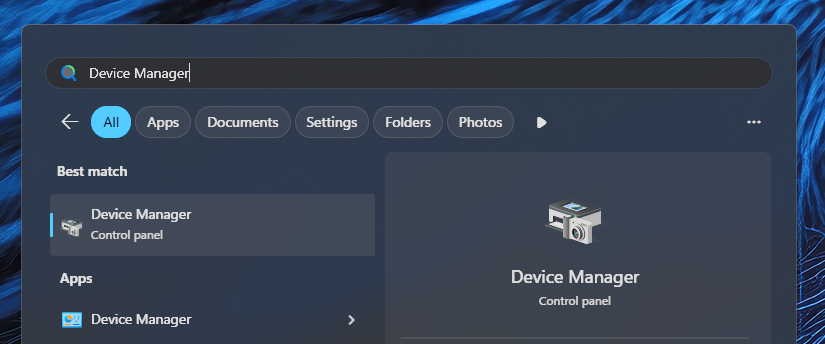
- Open Device Manager (one of the following)
- Press Win key + X → Device Manager
- Press Win key → type: Device Manager
- Press Win key + R → type: devmgmt.msc
- Find an Intel chipset device
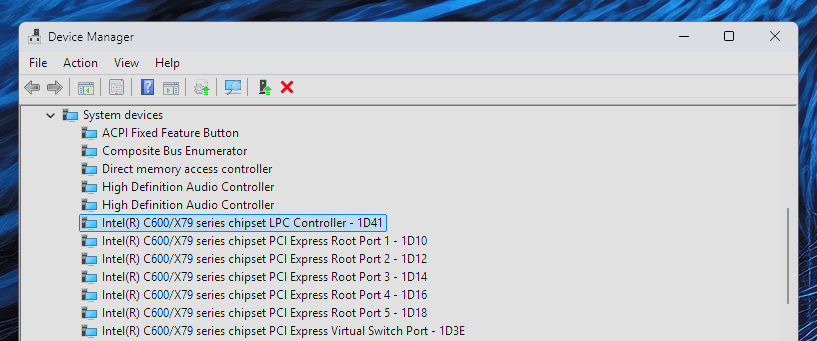
Expand the "System devices" section. Look for any entry with "Intel", "Chipset", "LPC", etc. in its name.
Often the name already contains the Hardware ID – for example:- "Intel(R) C600/X79 series chipset LPC Controller – 1D41"
Here the HWID is 1D41.
- "Intel(R) C600/X79 series chipset LPC Controller – 1D41"
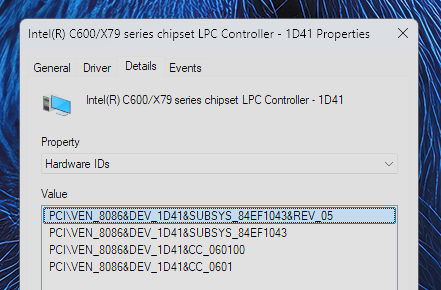
- If the HWID is not in the name, check the Hardware IDs property:
- Right‑click the device → Properties → Details tab → Property dropdown → select "Hardware Ids".
You will see something like: - PCI\VEN_8086&DEV_1D41&CC_0601
The part after DEV_ (here 1D41) is the device ID.
- Right‑click the device → Properties → Details tab → Property dropdown → select "Hardware Ids".
- Look up the HWID in the database I maintain on GitHub
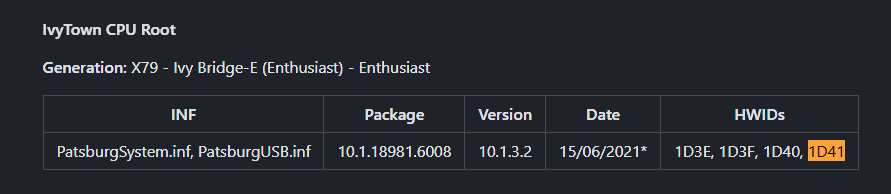
Open my latest INF database in your browser: intel-chipset-infs-latest.md
Press Ctrl+F and search for that HWID (e.g. 1D41).
Note: If your device is not treated as a chipset component, or if it is a chipset device that Intel never included in any of its Chipset Device Software packages (i.e., the INF comes from Windows Inbox Drivers), the HWID may not appear in this database.
You will immediately see:- The latest INF version for that device,
- Which (latest) Intel Chipset Device Software package contains it,
- The date shown is taken from the digital signature timestamp of the associated .cat file (the catalog file that signs the INF files), so it accurately reflects when the package was released, even if the INF itself contains a dummy date like 1968/1970 – this happens because Intel no longer embeds dates in newer INF files.
- Compare with what your driver tool says
If another program does not see the latest version or suggests a downgrade to an older version, that is not correct.
Believe me, no one else is crazy enough to download, extract and examine every single Intel Chipset Device Software installer ever released, then compile them into a complete, searchable database. That is exactly what I did – and it is the foundation of the Universal Intel Chipset Updater .
The tool does the above check automatically for all your Intel chipset devices in seconds, then downloads and installs the correct packages with full hash verification.
Last edit: 6 months 4 weeks ago by FirstEver.
The following user(s) said Thank You: duttyend
Please Anmelden or Create an account to join the conversation.
- rvail
-

- Offline
- regular poster
-

Enregistré
- Posts: 36
- Thanks: 34
Re: Universal Intel Chipset Drivers Updater
6 months 4 weeks ago - 6 months 4 weeks ago
1. Tried R-clicking "uninstall-intel-chipset.bat" & "run as admin": nothing happens
2. Tried navigating to that file location at a "run as admin":command prompt window: output "the syntax of the command is incorrect".& "!DOCTYPE html".
Note: the official Intel chipset installer "intel_chipset_10.1.20404.8794" includes "SetupChipset.msi" which functions normally, by double-clicking.
My advice for your little Intel chipset cleaner: make it so it DOESN'T need internet access to work, and can function with a simple R-click & "run as admin".
If some kind of glitch is being detected, make a pop-up window say that a system reboot is now required: "Reboot now?".
Then at time of system reboot, the faulty chipset leftover data can then be auto-deleted.
In other words: separate the "cleaner" function from the "Correct chipset .inf file finder" into two separate processes.
Also: Windows Update offered 3x separate optional Intel driver updates as part of fully updating the fresh install of Win 10 build 22H2.
2. Tried navigating to that file location at a "run as admin":command prompt window: output "the syntax of the command is incorrect".& "!DOCTYPE html".
Note: the official Intel chipset installer "intel_chipset_10.1.20404.8794" includes "SetupChipset.msi" which functions normally, by double-clicking.
My advice for your little Intel chipset cleaner: make it so it DOESN'T need internet access to work, and can function with a simple R-click & "run as admin".
If some kind of glitch is being detected, make a pop-up window say that a system reboot is now required: "Reboot now?".
Then at time of system reboot, the faulty chipset leftover data can then be auto-deleted.
In other words: separate the "cleaner" function from the "Correct chipset .inf file finder" into two separate processes.
Also: Windows Update offered 3x separate optional Intel driver updates as part of fully updating the fresh install of Win 10 build 22H2.
Last edit: 6 months 4 weeks ago by rvail.
Please Anmelden or Create an account to join the conversation.
- FirstEver
-
Topic Author
- Offline
- The Best Poster
-
Enregistré
- Posts: 116
- Thanks: 201
Re: Universal Intel Chipset Drivers Updater
6 months 4 weeks ago - 6 months 4 weeks agoMy advice for your little Intel chipset cleaner: make it so it DOESN'T need internet access to work, and can function with a simple R-click & "run as admin".
If some kind of glitch is being detected, make a pop-up window say that a system reboot is now required: "Reboot now?".
Then at time of system reboot, the faulty chipset leftover data can then be auto-deleted.
In other words: separate the "cleaner" function from the "Correct chipset .inf file finder" into two separate processes.
Also: Windows Update offered 3x separate optional Intel driver updates as part of fully updating the fresh install of Win 10 build 22H2.
I have no idea what you're talking about, because this new tool was created solely to fix error 1603 during MSI installation.
The files must be saved in the same directory:
- uninstall-intel-chipset.bat
- uninstall-intel-chipset.ps1
The only thing that popped up after I disconnected from the internet was an additional SmartScreen window.
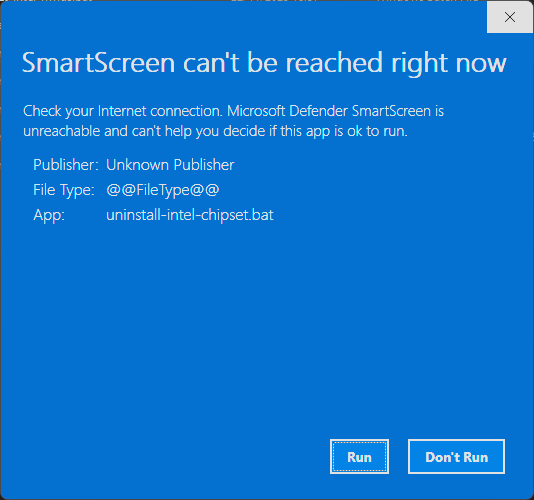
After clicking "Run", it starts normally.
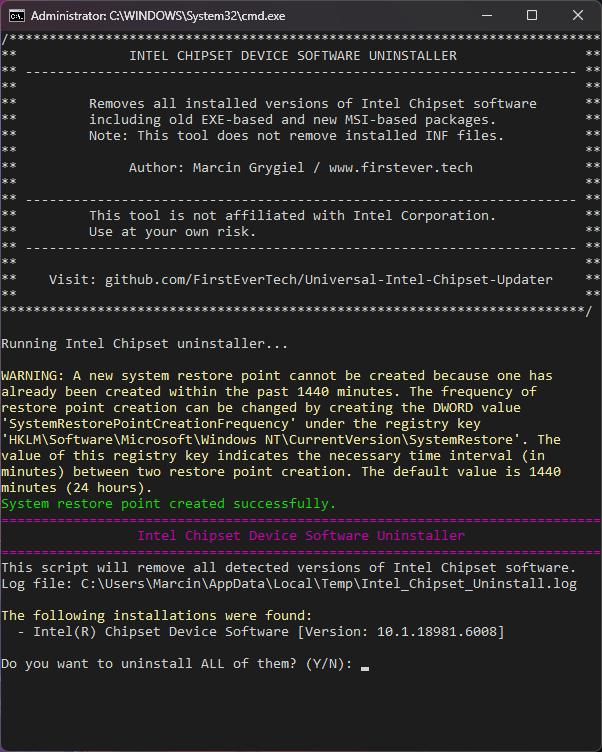
It's possible your antivirus is the problem...
I use regular Windows Security (formerly known as Windows Defender) from Windows 11 Pro, version 26H1.
The `!DOCTYPE html` error means you downloaded a GitHub webpage instead of the raw script files.
Please do the following:
1. Delete the old .bat and .ps1 files you downloaded.
2. Download them again, but correctly:
- Go to the raw version of each file on GitHub :
- uninstall-intel-chipset.bat (raw)
- uninstall-intel-chipset.ps1 (raw)
- Right‑click each link → Save link as… (do not copy-paste from the browser).
3. Save both files in the same folder.
4. Right‑click the .bat file → Run as administrator.
If nothing happens, open PowerShell as admin and run:
PowerShell: Set-ExecutionPolicy RemoteSigned -Scope CurrentUser -Force
Last edit: 6 months 4 weeks ago by FirstEver.
The following user(s) said Thank You: duttyend
Please Anmelden or Create an account to join the conversation.
- rvail
-
- Offline
- regular poster
-
Enregistré
- Posts: 36
- Thanks: 34
Re: Universal Intel Chipset Drivers Updater
6 months 4 weeks ago
Opening your "uninstall-intel-chipset.bat" file in Notepad results with several thousand lines of code, starting with:
What purpose for all of these web links, if they're not being used?
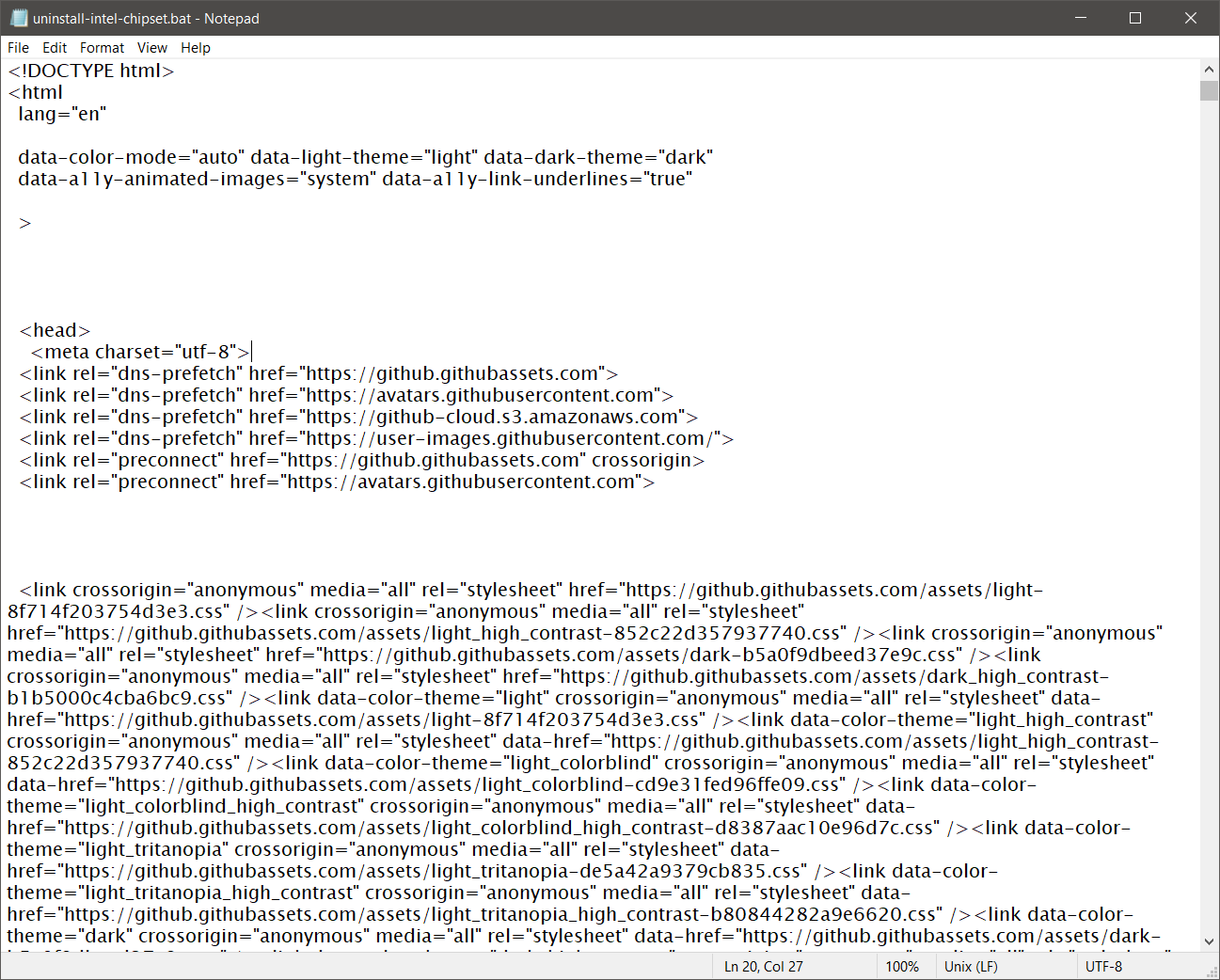
What purpose for all of these web links, if they're not being used?
Please Anmelden or Create an account to join the conversation.
Time to create page: 0.082 seconds